Pick a service
Clients choose the service they need, with its length and price.
Zuno POSAI Design Studio / Zuno Appointments
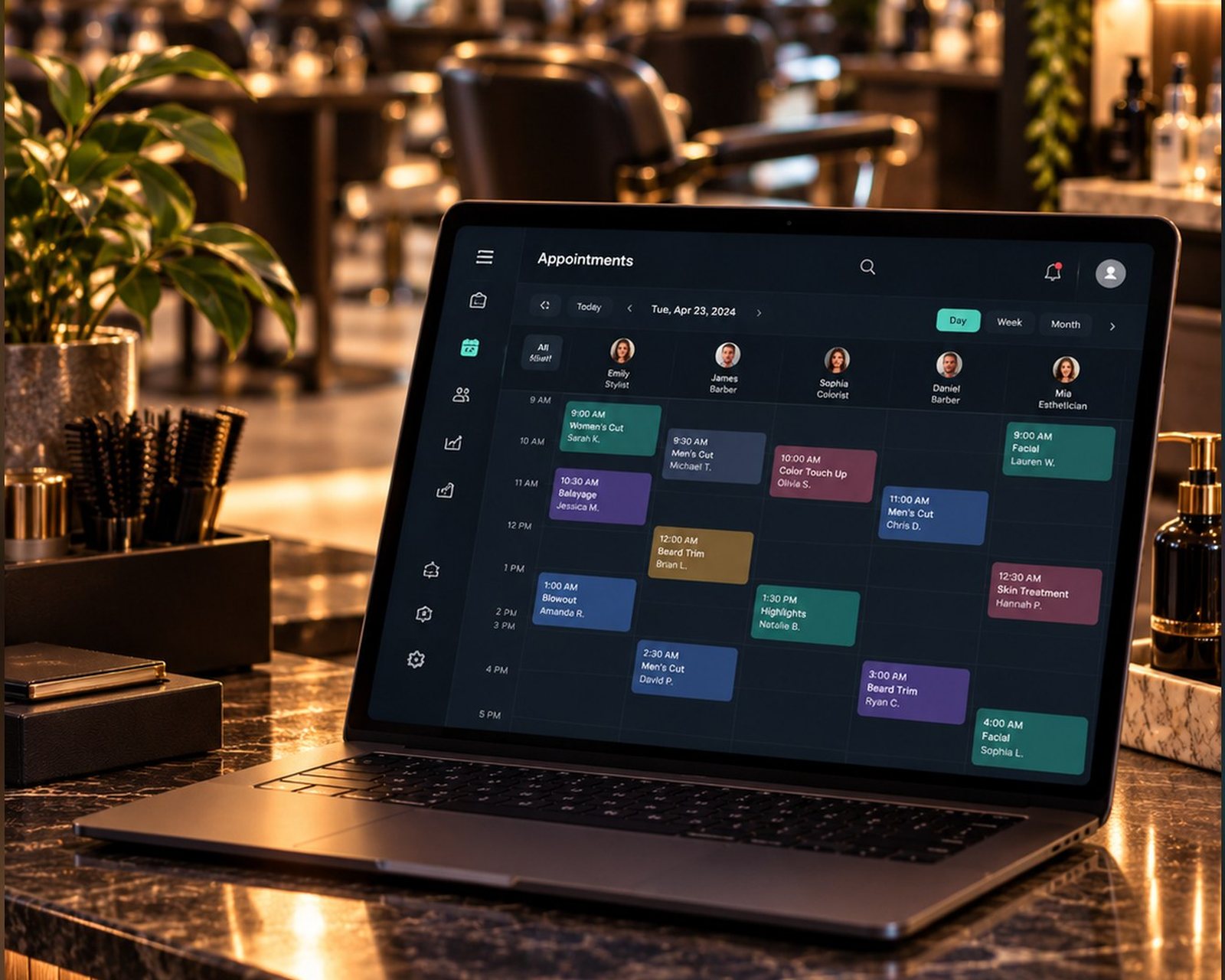
A booking page for your clients and a clear day plan for you. Match services to the people, chairs or bays that do the work.
30 days free · Use your own devices
 Zuno Appointments
Use Zuno your wayOpen in your browser. Mobile downloads will appear here when released.
Three simple steps
Clients choose the service they need, with its length and price.
Your working hours and booking rules determine the available times.
Clients confirm by emailed code and receive booking details with a link to change or cancel within your rules.
Who it is for
Cuts, colour and your team’s working hours.
A clear appointment for the next client.
Give each treatment the time it needs.
Make each bay a row in the diary.
Allow enough time for each service.
Keep services and appointments organised.
Book lessons and sessions around availability.
Your day at a glance
See appointments across your working day, with client history and a path from check-in to checkout.
Set it up once
Add each service’s name, length and price. Choose which people or bays can provide it.
Each person or bay is a row with working days and hours, a colour and the services it provides. A row cannot be double booked. A sign-in email is optional.
Use your booking link, a QR code with your logo, or a “Book an appointment” website button.
Accept payment at the venue, take a deposit (10% by default), collect the full price or let the client choose.
Online booking
On your link, QR code or website button
Their email
In the same staff diary you already use
You stay in charge
Online payments use your own Stripe account. Features depend on your plan.
Online payments
A clear payment flow, with your business in control.
Connect your own Stripe account. Customers pay on Stripe’s secure page and the money goes straight to your business. Zuno never holds the money.
Zuno’s standard fee is 1% of each online payment; check your payment settings for the fee that applies to your business. Stripe charges its own processing fee: see Stripe pricing (opens a new tab). With fee refunds enabled, a full refund returns the Zuno fee too. Online card payments currently support Ireland and the rest of the EEA in euros, subject to Stripe approval. If Stripe is unavailable, online payment stays off and customers pay at the venue.
Choose no online payment, a deposit (10% by default), full payment, or let the client choose. Set late-cancellation rules to keep the deposit, keep everything or refund all.
Explore the details
Set minimum notice, booking horizon, breaks, holidays and change or cancellation cutoffs. Keep client visit history, check clients in and complete checkout through the till.
Clients confirm with an emailed code. Incorrect codes do not grant access and repeated wrong-code attempts are blocked. Staff use their own logins and permissions.
Review sales, payment methods, top products, expenses and end-of-day totals. Costs, profit, reports and exports follow the permissions and plan you choose.
Keep track of what customers still owe, record later payments and charges, and review business expenses. Give staff separate permission to view, edit, collect or export.
Use individual logins. Choose access to sales, refunds, products, customers, reports and settings. A restricted login can keep a team member to the diary only.
Appointment rows define who or what can be booked. Zuno Team separately manages rotas and staff time-clock records. Explore Zuno Team.
A little clarity
Use any phone, tablet or computer. Bring your own receipt printer and card machine. Zuno does not sell hardware; counter card payments are taken on your own machine and recorded in the app.
Yes. Your first business gets a 30-day free trial. Additional locations require paid setup. Choose the plan that includes the tools and user limit you need.
Use Log in at the top or bottom of any page. It opens the Zuno app, where you can sign in or create an account.
Plans
Services, staff diaries and client bookings. Compare what each plan includes, with 30 days free to start.
Loading plans…
Make it your own
Try Zuno free for 30 days. Explore the tools with your own business in mind.
Already using Zuno? Log in to your account